| Support Category: User Account | Inactive Account |
| Specialist Notes: |
When a user account keeps deactivating automatically, the Termination Date on the account profile will need to be removed.
IMPORTANT! There were previous concerns that we would need written authorization before reactivating accounts. It has been confirmed by the administrators that the reactivation request is considered authorization. |
Follow these steps to reactivate the account in Cornerstone:
- Navigate to the User Search (Menu > Admin > Users) and search for the appropriate user
- If the user is inactive, you will need to change the User Status field from "Active" to "All"
- Click on their name to open their User Record
- Click Edit Record
- Change the users Active Status field from "Inactive" to "Active"
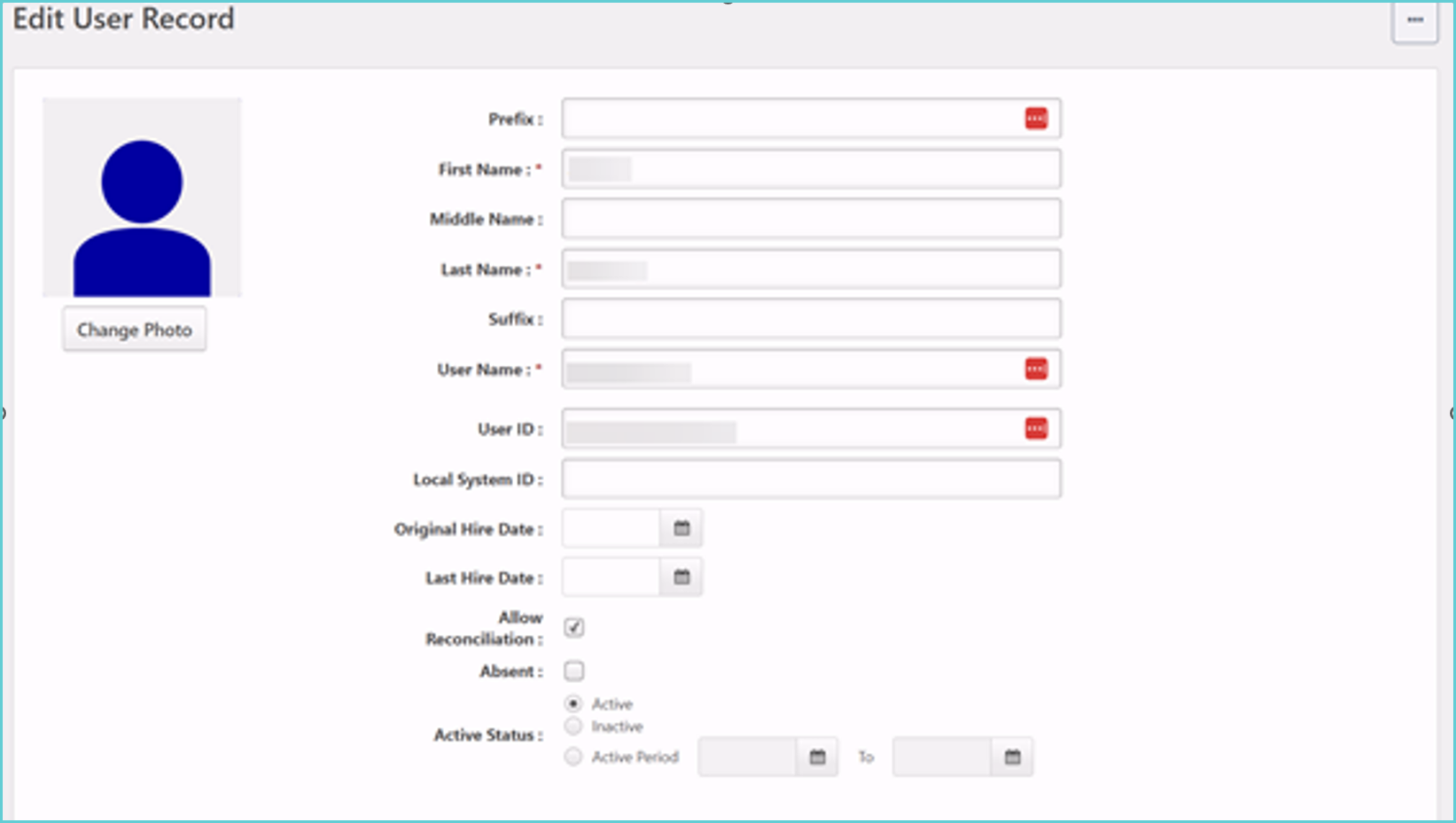
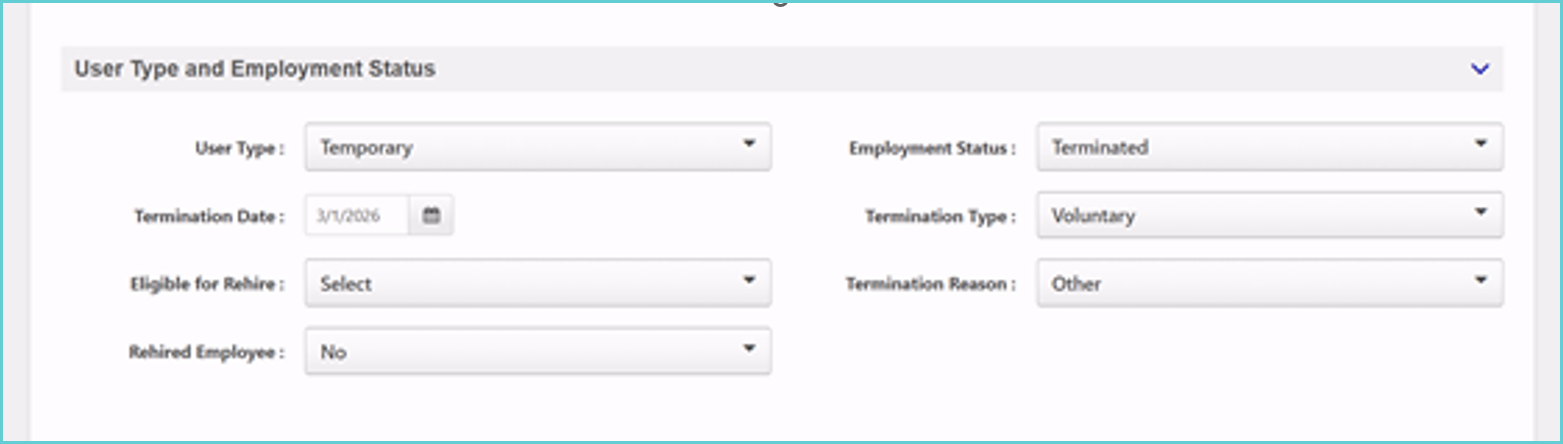
- Scroll down to the User Type and Employment Status section
- Remove the date in the Termination Date field
- Change the Employment Status dropdown to "Working"
- Click Save
| Standard Response: |
We apologize for the inconvenience of this! I can take care of the issue for you – one moment, please.